
Why travelers use Naver Map in Korea
Naver Map is one of the most useful apps for getting around Korea because it does more than show a simple route. It helps with mixed route planning, public transportation, live guidance, navigation, place details, and reservation-linked information in one flow. That is why many travelers end up using it once they start moving around Korea more seriously.
The problem is not that English is missing. The problem is that the language setting is not in the place many first-time users expect. If you follow the screenshots in order, the change is simple.
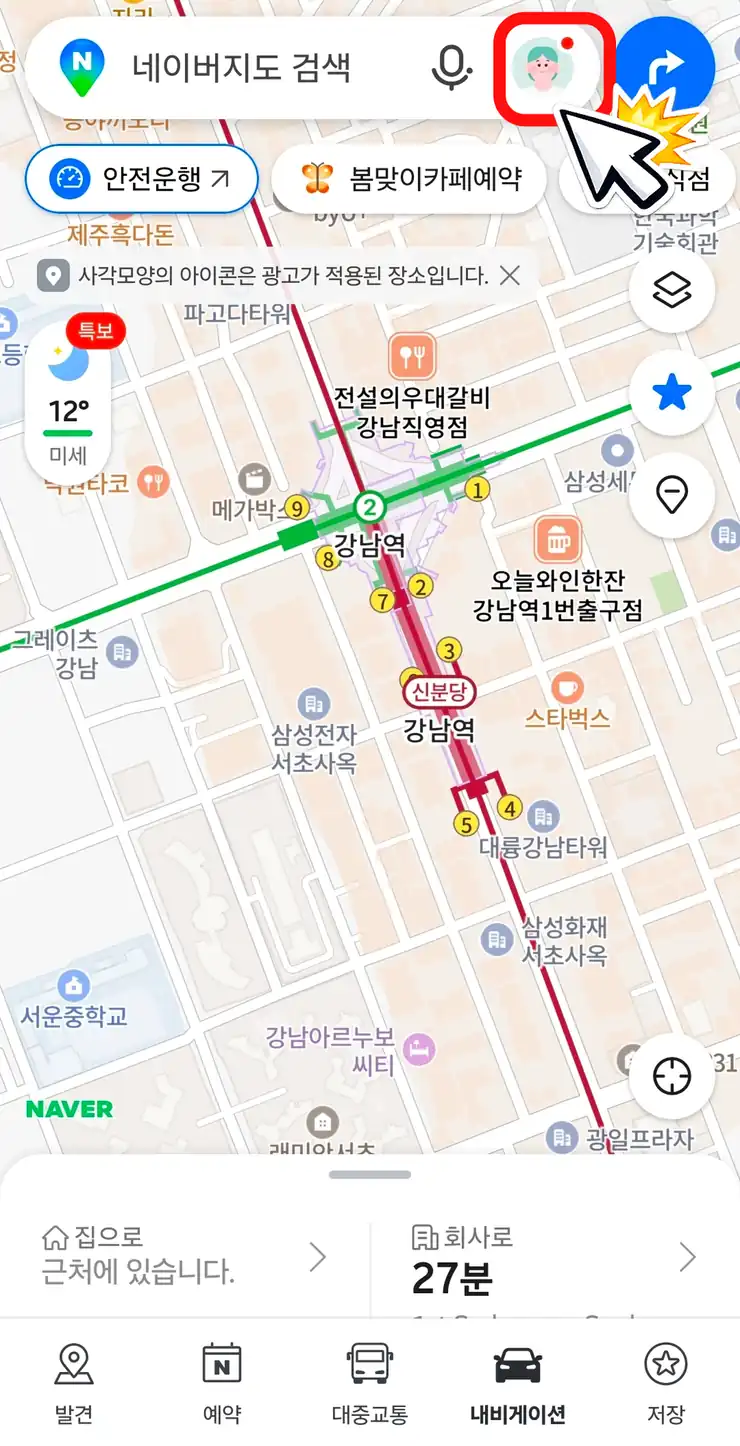
Step 1: Tap the profile icon
Start from the main Naver Map screen and tap the profile icon in the top right corner. This is the part many people miss first, because they often expect the setting to be available directly from the main screen.
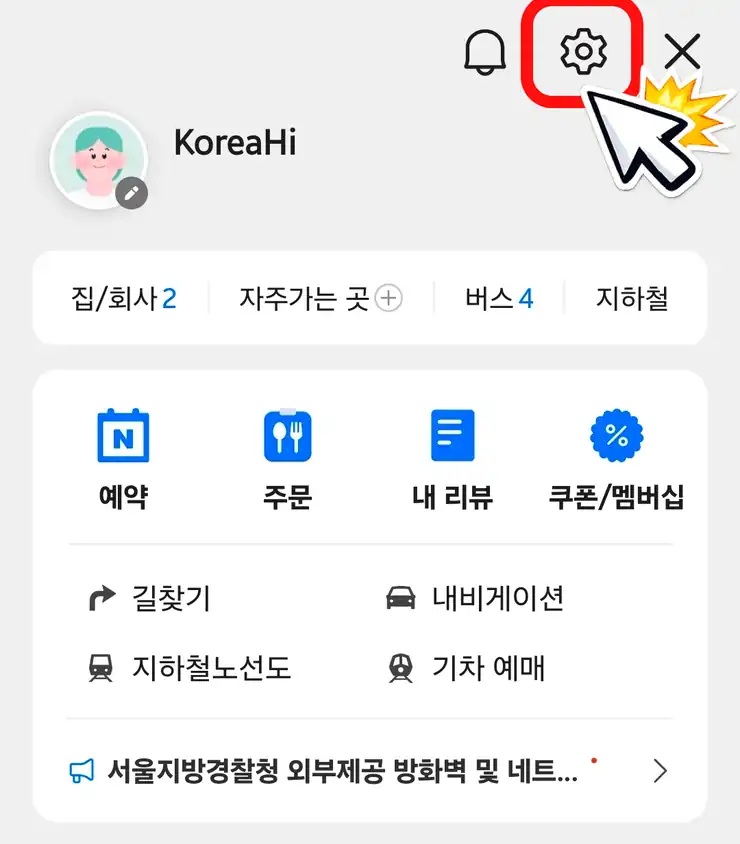
Step 2: Open the settings icon
Once you are in the profile area, tap the settings icon in the top right corner. This opens the full settings menu.
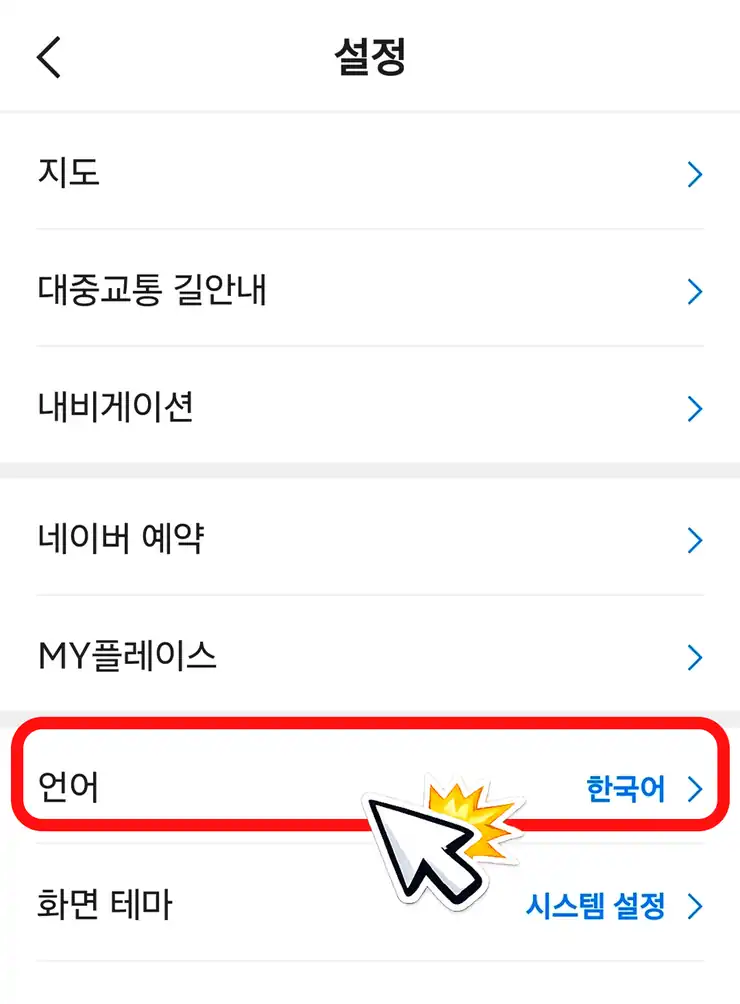
Step 3: Find the language menu
In the settings list, find 언어. That word means Language. If the app is still fully in Korean, this is the most important label to recognize.
Step 4: Select English
Tap the language menu and choose English from the list. Once you reach this screen, the hard part is already over.
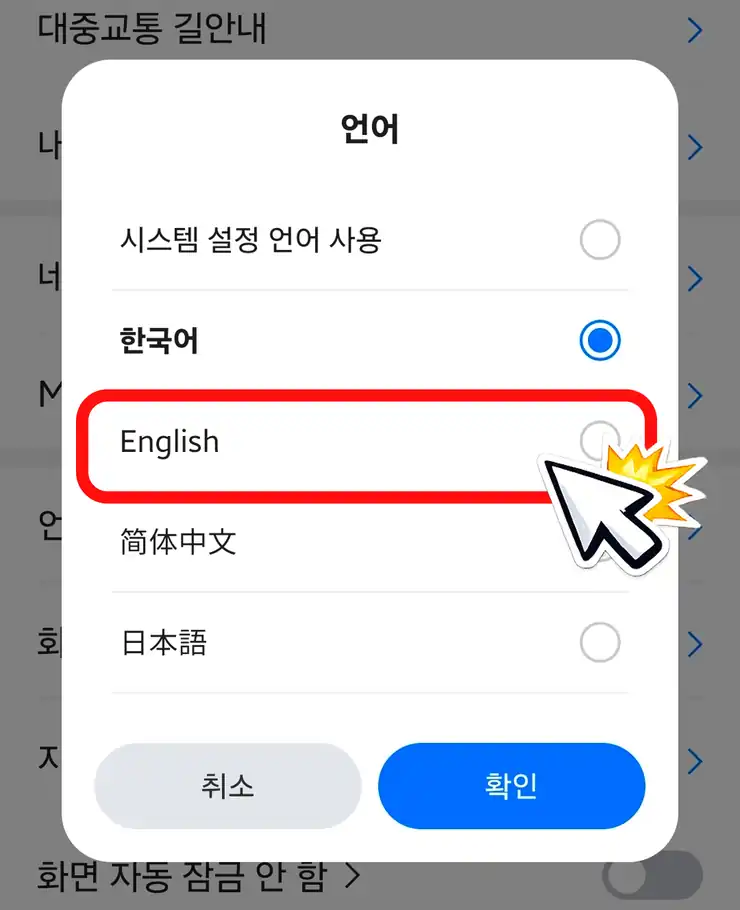
Step 5: Tap confirm
After selecting English, tap 확인. 확인 means Confirm. The app then reloads and opens again with the English interface applied.
Useful Korean words on the screen
- 설정 = Settings
- 언어 = Language
- 확인 = Confirm
- 취소 = Cancel
- 한국어 = Korean
- English = English
Quick summary
To change Naver Map to English, go in this order: profile icon, settings, language, English, confirm. After you tap confirm, the app reopens and the interface should appear in English.